 WDCH
WDCH
🌐 Twitter (X) login not receiving email verification code?
Beginner-Friendly Self-Rescue Tutorial
Cross-Border Pitfall Avoidance Guide: Force-Trigger Email Code Delivery via Official Password Reset Channel
When you log in to your Twitter account from a new device or new proxy IP node, if Twitter/X's risk control system detects a high-risk login environment, it will actively ** intercept and freeze routine login verification code delivery ** to prevent credential stuffing. At this point, refreshing your inbox countless times will not help.
💡 Core Breakthrough: Use the official [Forgot Password] channel to verify security ownership, thereby force-triggering the system's reset confirmation code. Below is the complete step-by-step guide.
🚀 "Forgot Password Wake-Up Method" Detailed Step-by-Step Process
Before operating Twitter/X, please log in to your bound email in advance. Usually the email suffix provided to you is the login address (for example, Microsoft emails often use the official website outlook.com or use a dedicated email client to log in first).

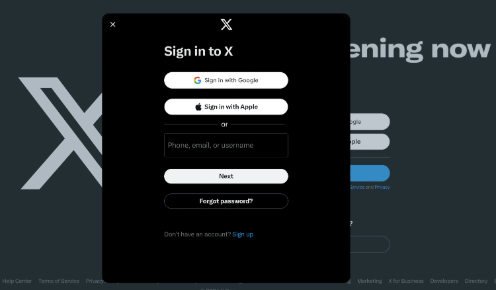
Open your browser and navigate to the Twitter official website, in the login box, first enter your Twitter/X username (or the bound email/phone number).
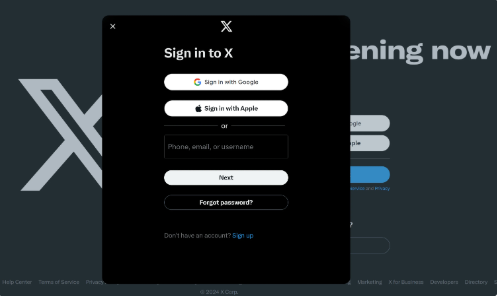
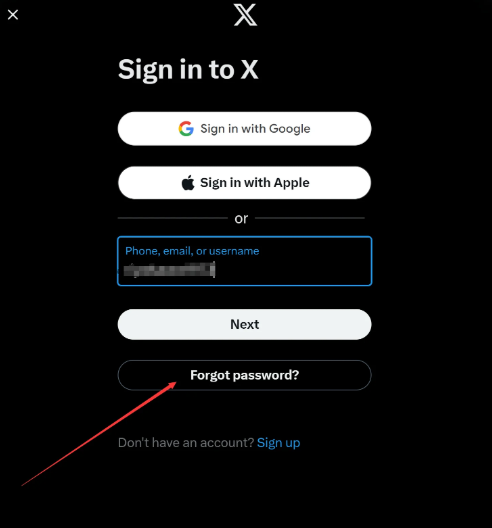
When you are redirected to the password entry screen, Please do not blindly attempt to enter your password Instead, directly click the light gray link below [Forgot password (Forgot password?)]。
In the password recovery box, first enter the [complete email address] bound to this Twitter/X account, then click Search; if the platform subsequently displays a secondary confirmation, continue by entering the corresponding [Twitter/X username] for precise account identification.
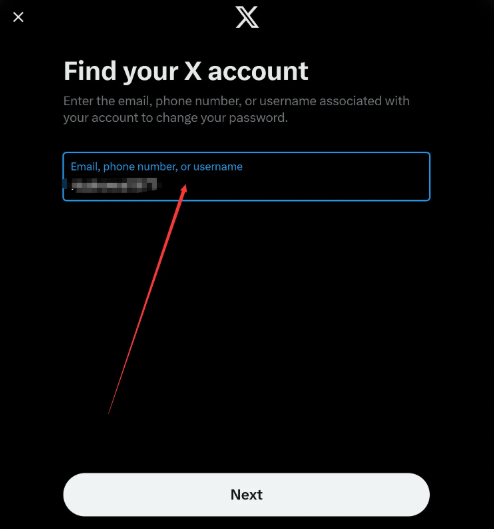
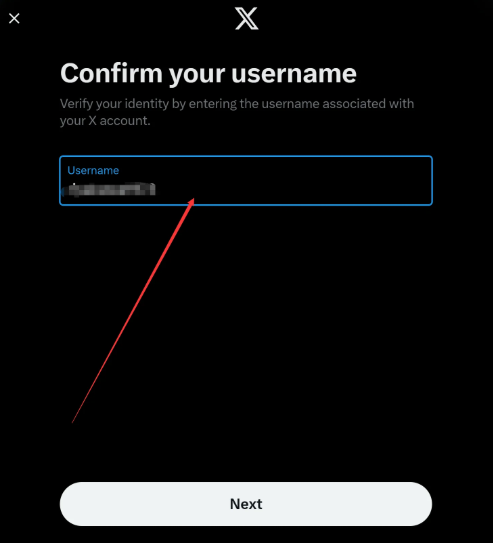
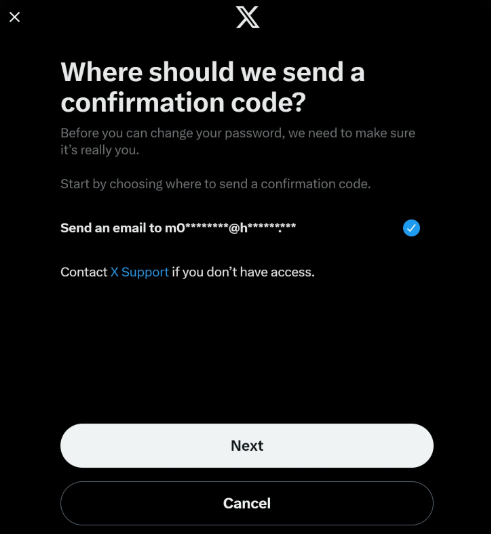
Select the option to receive the reset verification code via this email address, then click Next. At this point, go to the inbox of the email account you just logged into, and you will find a reset email from Twitter official containing a 6-digit password confirmation code.
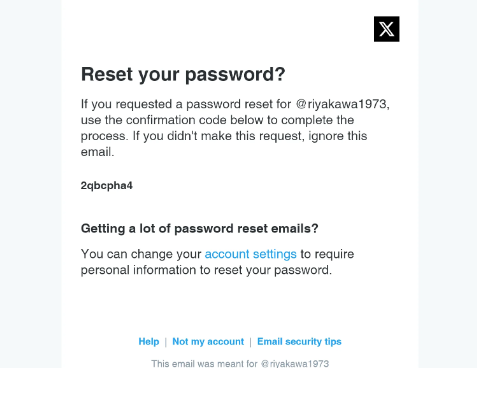
Copy the 6-digit code from the email, return to the Twitter/X page and paste it to complete verification. Then in the subsequent reset dialog, ** set a new password ** for your account with high strength, and click Save.
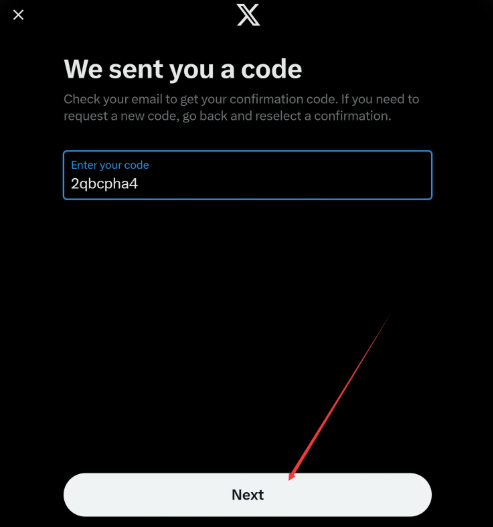
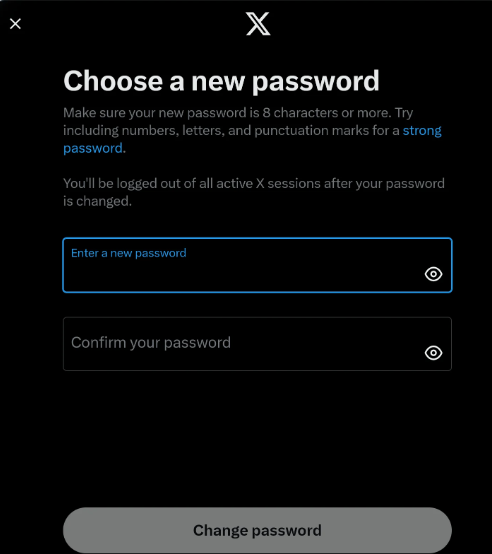
After the password is successfully changed, clear the cache completely once, then return to Twitter/X's official login page. Re-enter your newly set account credentials; at this point, since the security freeze has been forcibly lifted by the password reset process, your email will be able to 100% smoothly and routinely receive temporary login verification codes sent by Twitter/X. With that, the account is successfully and securely logged in!