 WDCH
WDCH
🔐 2FA Two-Factor Authentication and Google Backup Codes Usage Guide
🌐 Method 1: Web-based Quick Extraction 2FA Dynamic Code (No Installation Required)
🔗 Recommended 2FA Online Extraction Websites (Choose Any One):
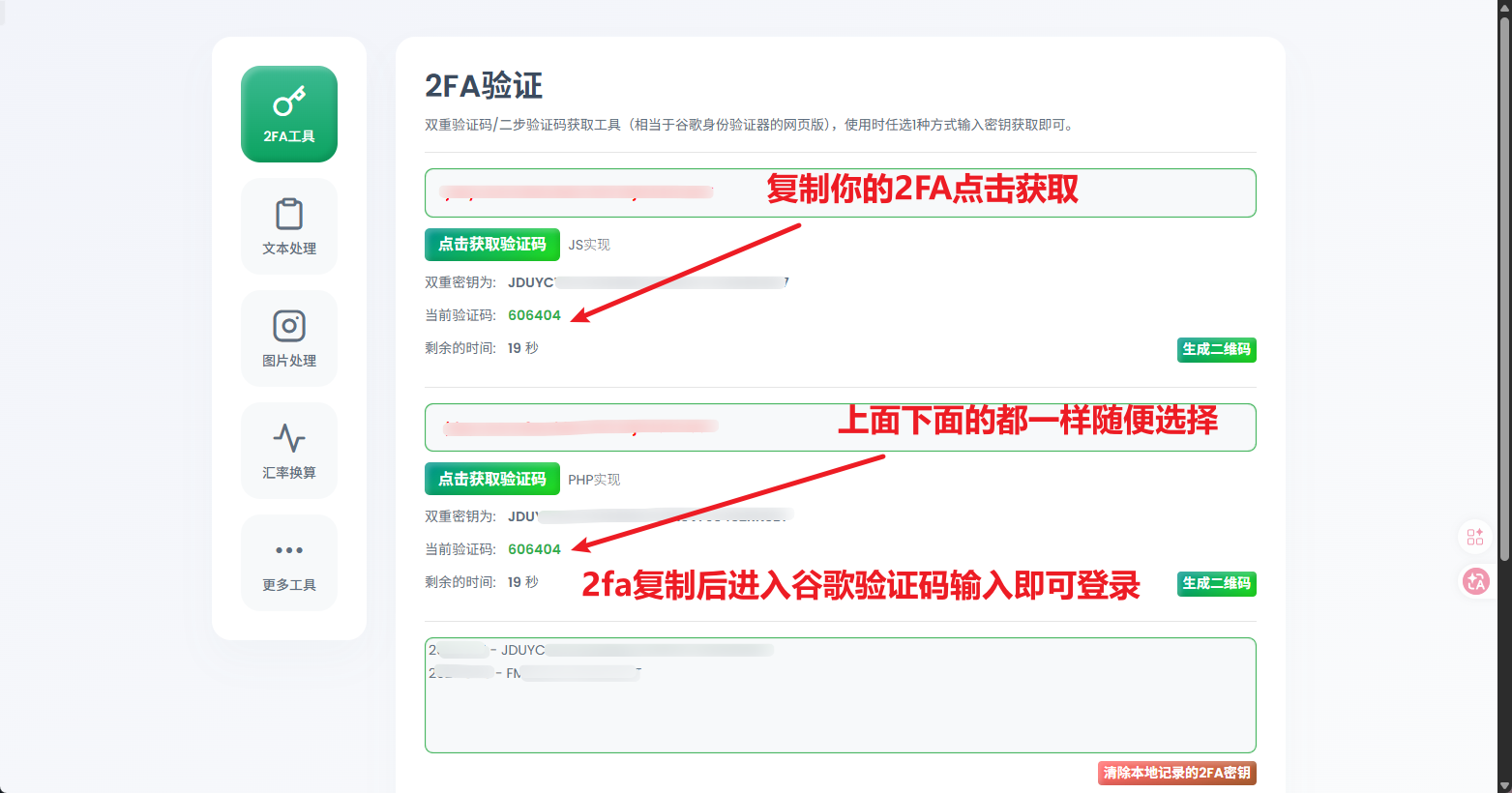
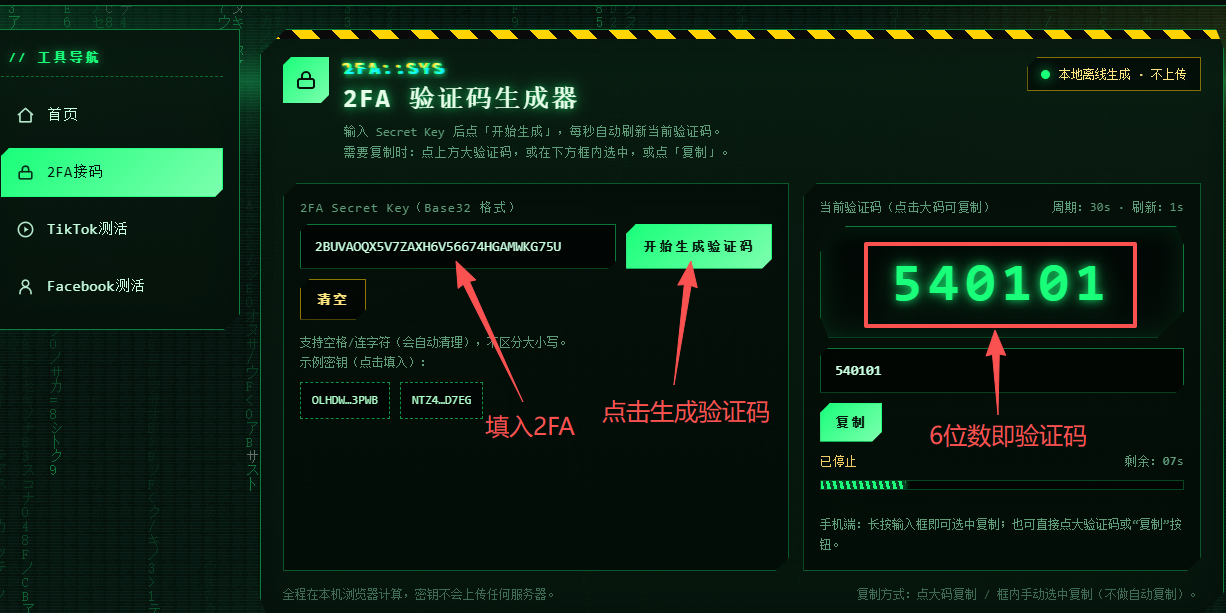
Step 1: Open any of the online verification websites above, paste the 2FA key or JSON-formatted text containing the key directly into the input field, then click “ Get / Submit”。
Step 2: After submission, the page will automatically generate a 6-digit dynamic verification code; copy this code and enter it into the platform you are logging into.
📸 Web-based Operation Flow Diagram:
📱 Method 2: Use authenticator software/extension (recommended for long-term use)
📱 mobile (iOS / Android)
- iPhone / iPad (iOS): Search and download in App Store Google Authenticator or Authenticator。
- Android (Android): Search and download in the app store Google Authenticator (Google Authenticator) or Microsoft Authenticator。
💻 PC Desktop (Chrome browser extension)
Recommended: Use the Google Chrome browser extension: Authenticator - 2FA。
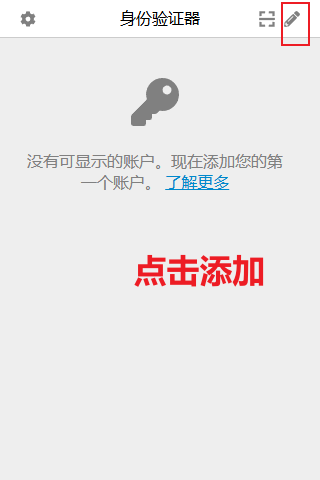
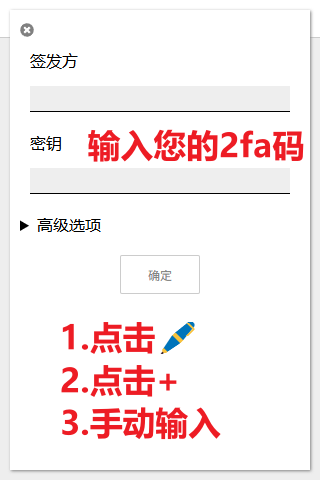
🔑 Additional guide: Log in to Google account using “ backup codes ” (Backup Codes)
When logging into Gmail (Gmail) triggers two-factor verification, and you temporarily cannot use your phone or the 2FA dynamic code, you can use 8 backup codes Login:
- On the verification screen for logging into Google, click the option below “Try another way” (Try another way)。
- Select “Enter your 8-digit backup code” (Enter one of your 8-digit backup codes)。
- Enter any pre-saved 8-digit backup code (no spaces / spaces allowed; the code will become invalid after entry).
Log in to your Google account ➔ and enter Account Security Settings ➔ can be found under “ two-step verification ” Backup codes (Backup codes) ➔ Click "Generate/Print" and save properly.
🔒 Supplementary Tutorial: How to Change Your Google Account Password and 2FA Key
To ensure absolute account security, it is recommended that you update your account password and 2FA two-factor authentication immediately after logging in:
1. Change Login Password:
- Log in to your Google account and visit Security Center (Security)。
- Under “How you sign in to Google”, click “Password” (Password)。
- After verifying your current password, enter a new strong password and click “Change Password” to complete the setup.
2. Reset / Rebind 2FA Key:
- Also in Security Center click “Two-Factor Authentication” (2-Step Verification)。
- Find “Authenticator App” (Authenticator app) and click to enter.
- Tap “Change Authenticator” or delete the existing app and re-add it.
- The system will display a new QR code (or provide a new plain text secret key). Use your mobile authenticator App to scan the QR code, and enter the generated 6-digit verification code to activate the new 2FA binding.
⚠️ Note: After updating the 2FA secret key, the old Secret Key will immediately become invalid. Please be sure to save the latest secret key in your authenticator.