 WDCH
WDCH
🤖 Android NekoBox Proxy Configuration Tutorial
Android NekoBoxForAndroid Chained Proxy Solution for Socks5 Static IP Overseas Configuration Guide
🤖 Why Use a Proxy?
In the current network environment, many users need to use a proxy to protect privacy and access overseas resources. Below we'll teach you how to use it on an Android phone NekoBoxForAndroid configure stable overseas static residential IP, so you can browse the internet more safely and stably.
🛠️ Pre-Configuration Preparation
- An Android system phone 📱
- After purchase stable overseas static residential IP(Includes IP, port, username, and password).
- Have a working base node that can connect to overseas networks (ensure your phone can currently access the internet freely).
🚀 Configuration Steps
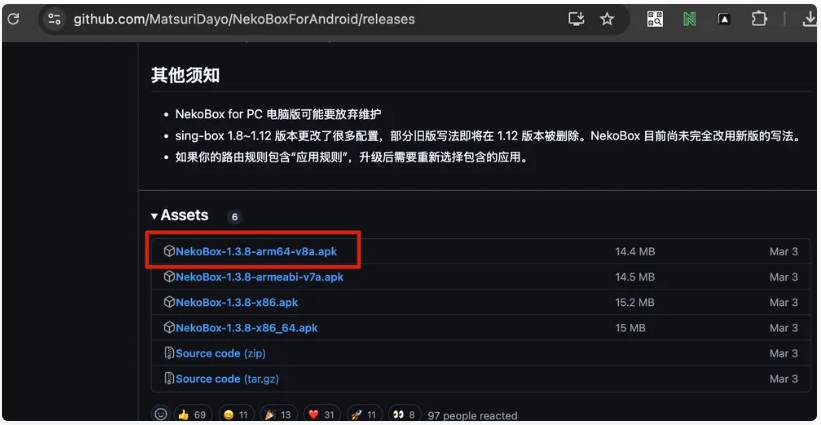
Go to GitHub official release page to download the latest version of the installation package:
👉 Selection recommendations: If you don't know your phone's processor model, download the version with v8a in the name (compatible with most modern Android phones).
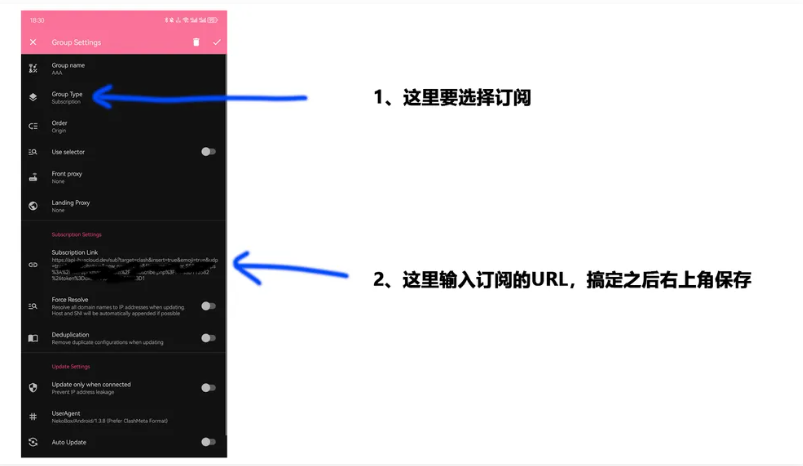
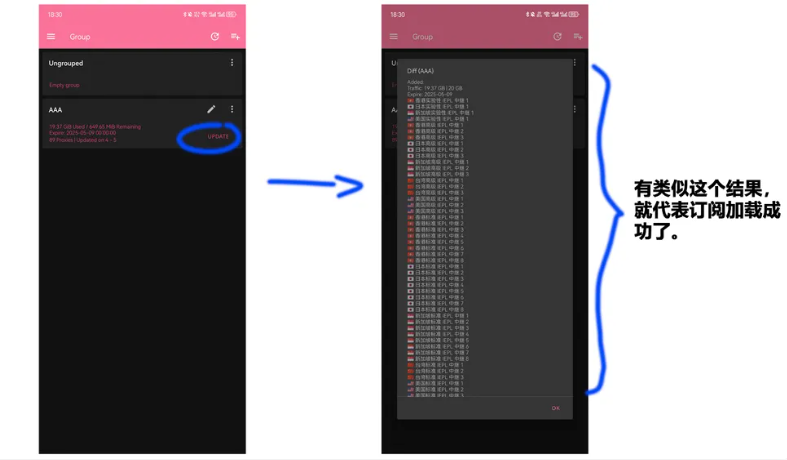
After installation, open APP, first import your purchased regular airport node subscription, and refresh to update the subscription, ensuring your phone can access the internet freely.
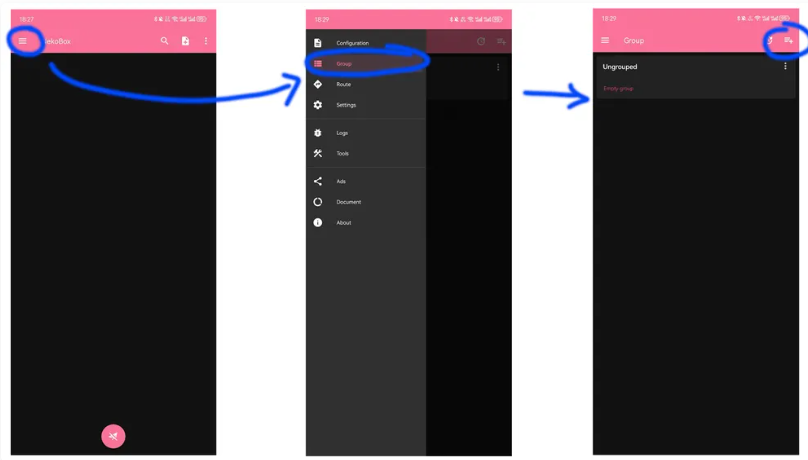
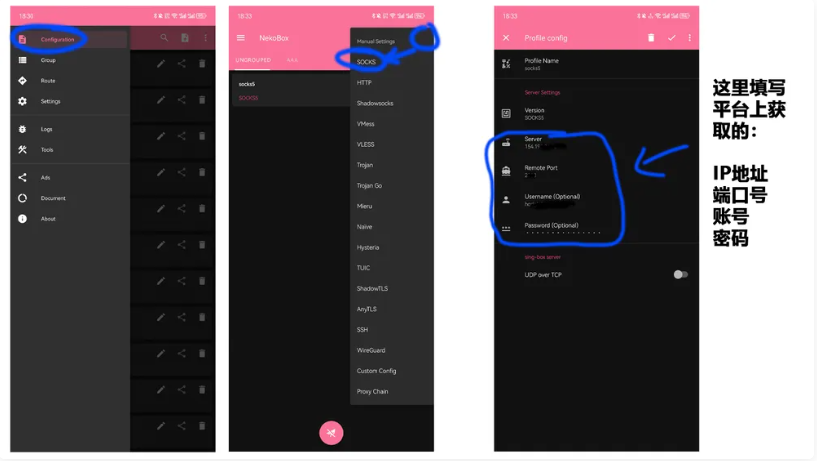
In APP, tap to manually add a new configuration, select protocol Socks5, enter Stable Overseas Access provided proxy parameters:
Port: 12345
Username: name
Password: mima
Please carefully check that every item is spelled completely correctly ✅
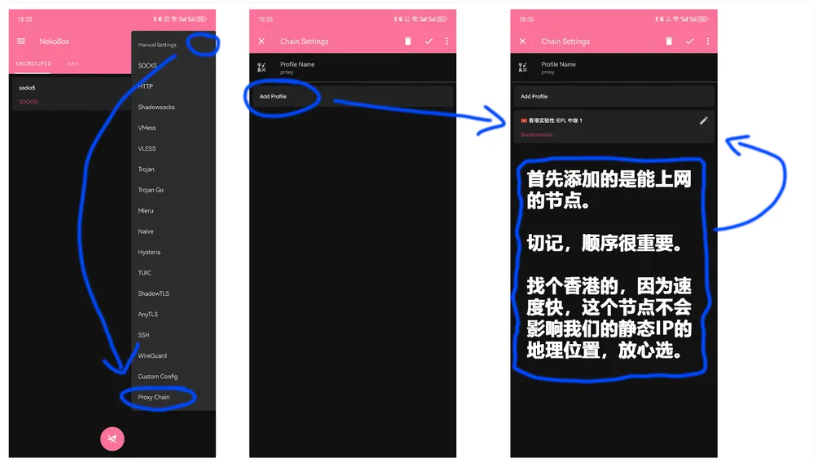
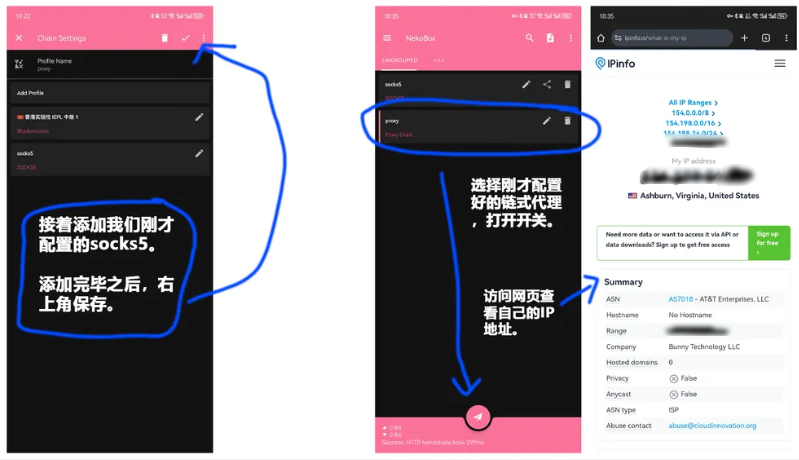
After completing subscription and Socks5 setup, go to the software menu bar "Chain Proxy" settings page:
- Set the working airport node as front proxy (first layer)。
- Set the Socks5 static IP you just configured as exit proxy (second layer)。
🔍 Verify connection and IP status
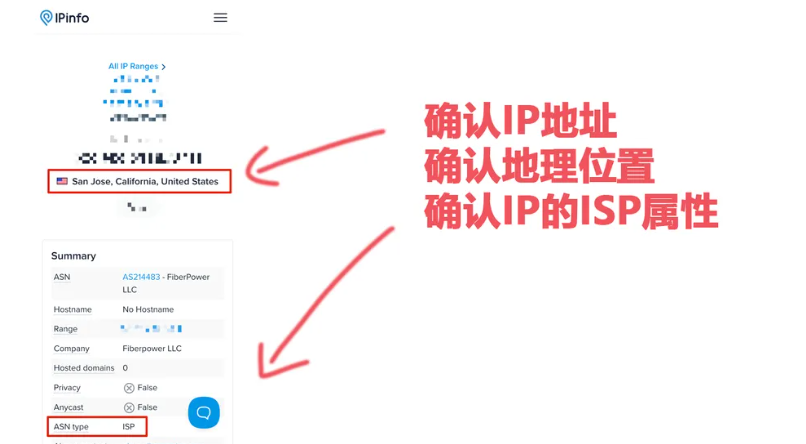
1. Open your mobile browser and visit https://ipinfo.io/what-is-my-ip Confirm whether the IP address shown is the static residential IP you purchased.
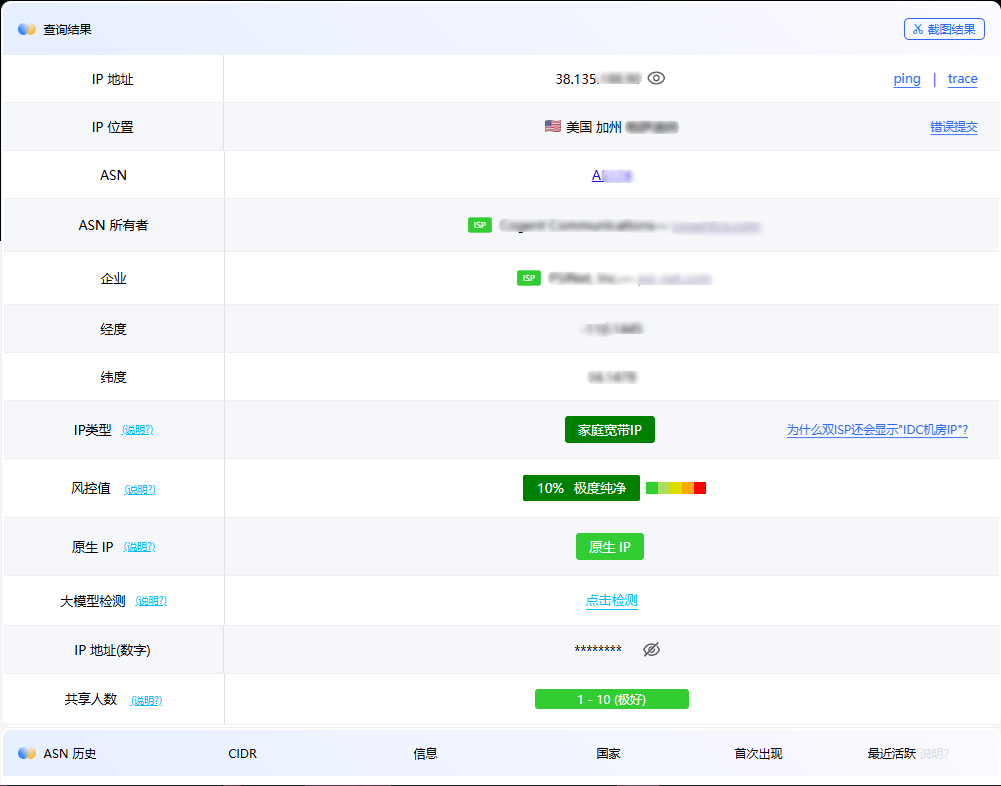
2. You can also visit http://ip.ping0.cc/ Query IP purity score、ISP residential type as well as Whether it is a native IP。
💡 safe usage recommendations
- Regularly check IP status in your mobile browser, keeping the chain proxy connection stable.
- Before each use, confirm that proxy parameters and bound front node are correct.
- Comply with target platform community guidelines; avoid frequent logins from different locations or violations.