 WDCH
WDCH
🖥 AdsPower Configure Proxy IP Anti-Association Tutorial
Stable Offshore Static Residential IP Configuration and Purity Detection Full Process
🖥 Why Use a Proxy?
In multi-account operation scenarios, IP duplication or an unclean environment can easily trigger risk controls or even lead to account association and bans. By AdsPower Anti-Association Browser configuring in Stable Offshore Static Residential IP you can perfectly achieve Multi-Account Independent Environment Isolation and IP Anti-Association making offshore business operations more secure.
🛠️ Pre-Configuration Preparation
- Installed AdsPower Anti-Association Browser。
- Purchased stable overseas static residential IP。
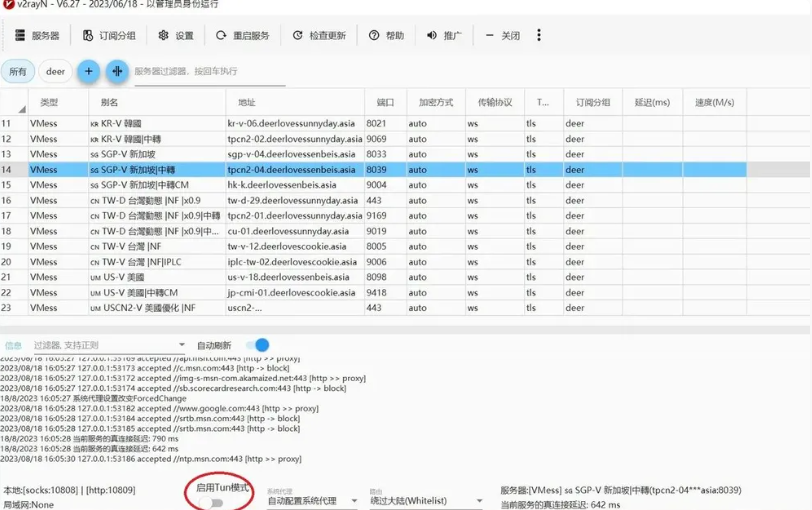
- a stable overseas network environment (available via dedicated line, Clash, or v2rayN), and ensure that TUN Mode。
1. v2rayN: Must enable TUN Mode
2. Clash: Must install Service Mode + enable TUN Mode
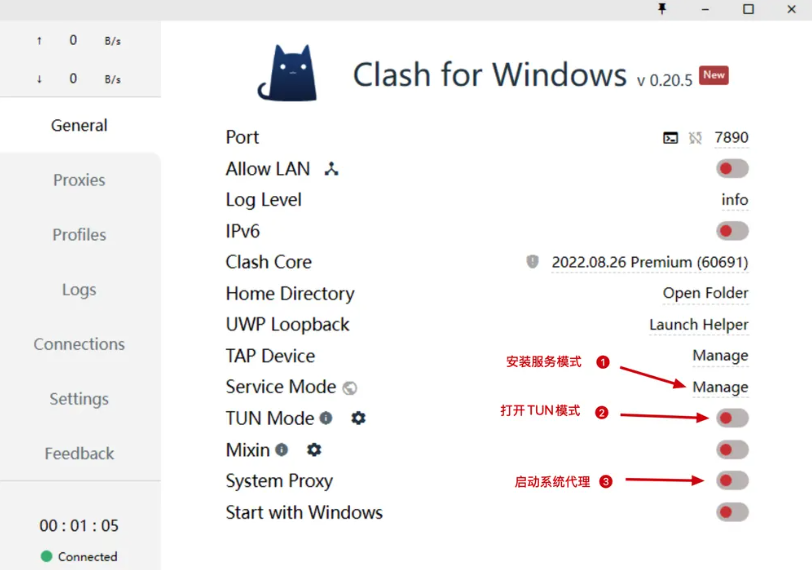
⚠ Clash The author has deleted the repository; strongly recommended to use the latest version v2rayN:
👉 Click to go to GitHub to download v2rayN client
🚀 Configuration Steps
Ensure the software has been downloaded and installed, then launch the AdsPower anti-association browser client.
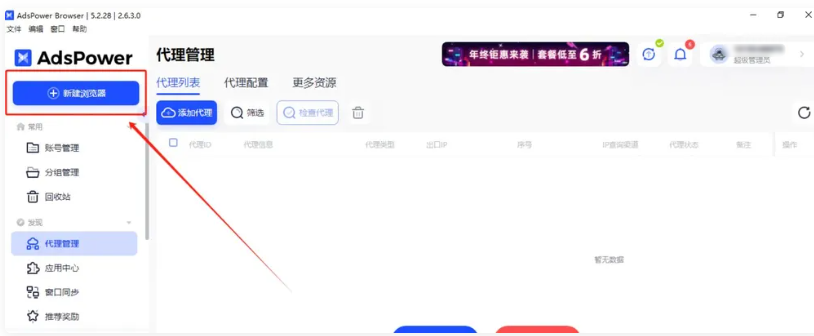
On the main interface, click "Create New Browser Profile," and fill in the basic remarks as needed in the configuration window that pops up.
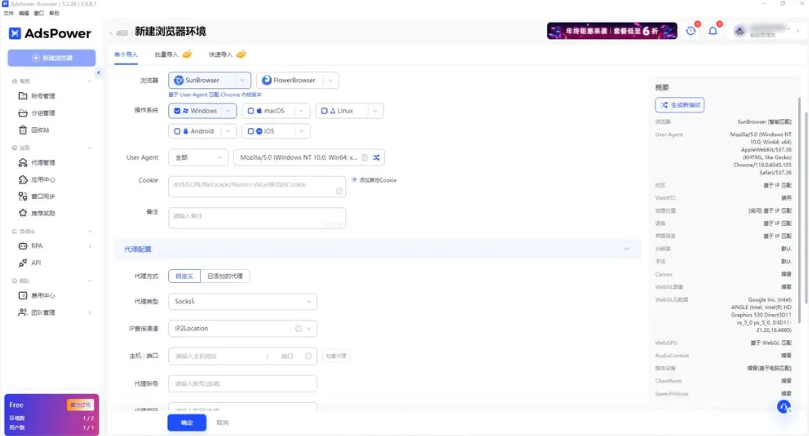
In the "Proxy Settings" section, select SOCKS5(or HTTP) as the proxy type.
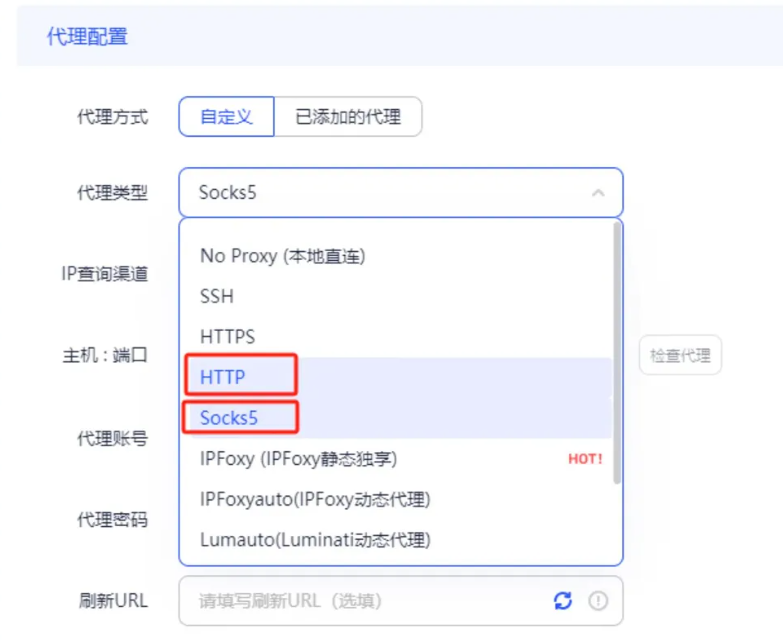
Fill in the proxy parameters obtained from your purchased card credentials:
Port: 12345
Username: name
Password: mima
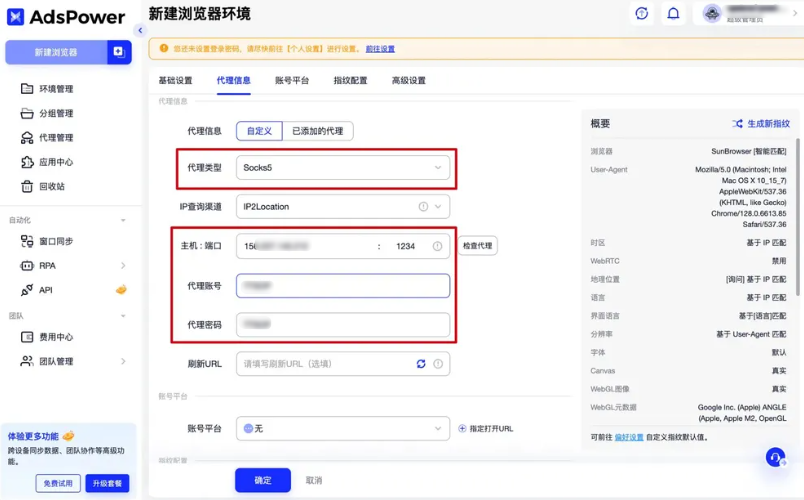
To reduce risk control detection, the following corresponding settings are recommended:
- Operating System: Select a system fingerprint matching the country/region where the proxy IP is located.
- Language: Select the primary language of the target market (e.g., select en-US for the United States).
- Time Zone: Check “ to automatically set ” based on IP, or make it fully consistent with the proxy IP location.
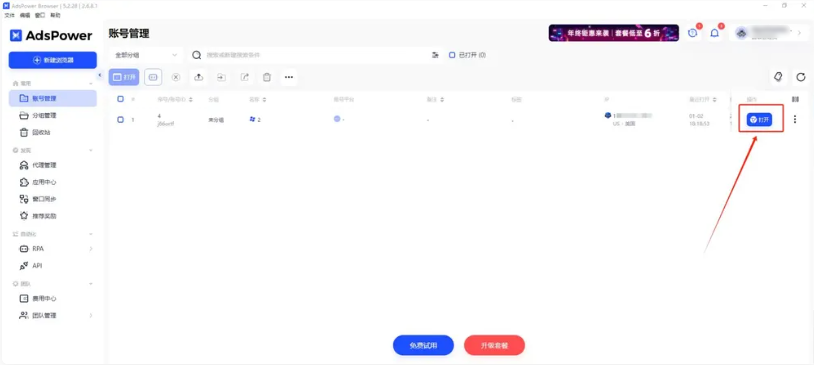
After verifying all information is correct, click "Save". Return to the main interface, find the newly created window configuration, and click "Launch".
🔍 Verify Connection and Purity
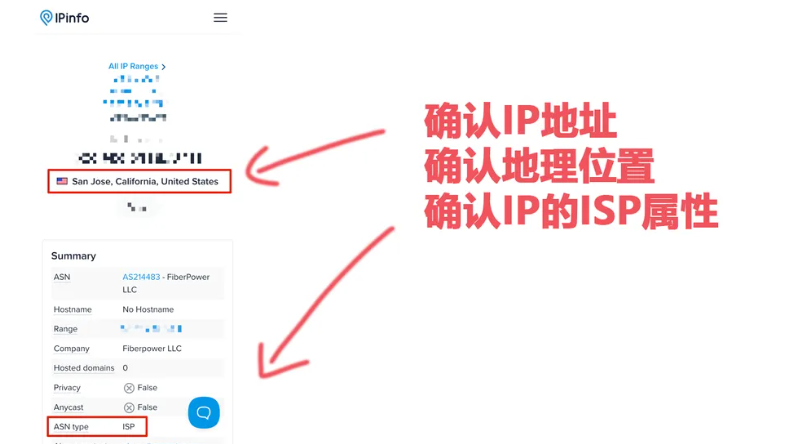
1. Open the configured browser and visit https://ipinfo.io/what-is-my-ip Confirm whether the IP address shown is the static residential IP you purchased.
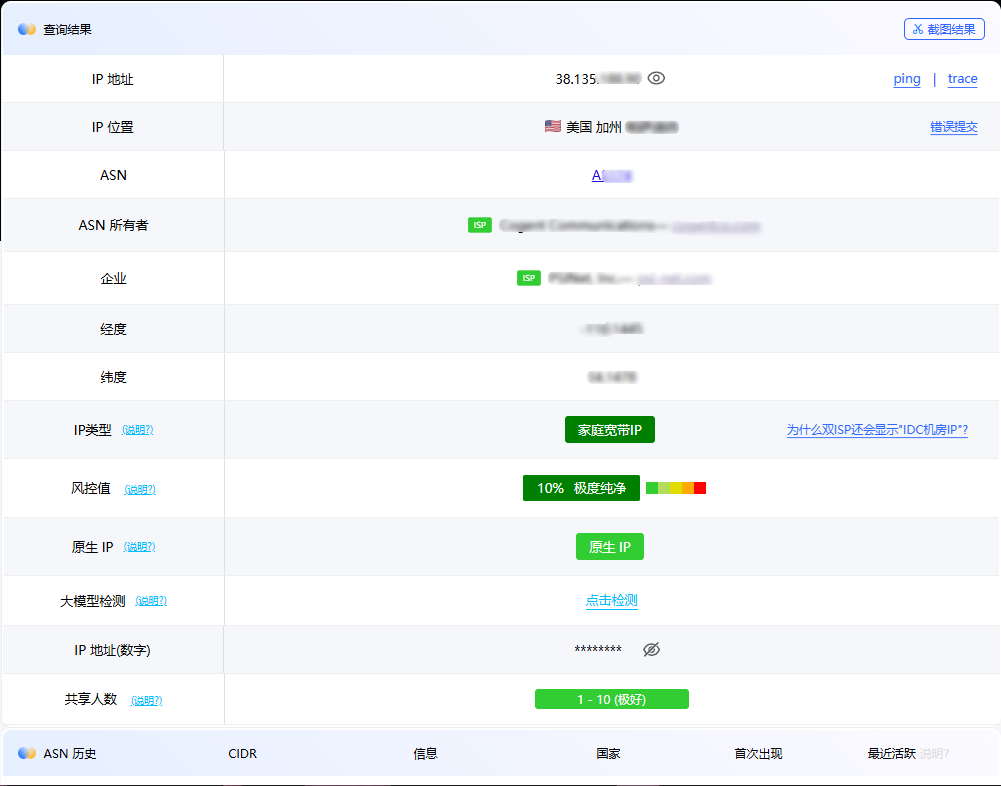
2. Visit http://ip.ping0.cc/ Query IP purity score、ISP residential type as well as Whether it is a native IP。
💡 safe usage recommendations
- Regularly check the IP connectivity status within the environment to maintain a stable connection.
- Before launching a new browser environment, carefully verify that the proxy port and account credentials are entered correctly.
- Strictly adhere to the target platform's community guidelines and risk-control rules; avoid high-frequency abnormal activity or any policy violations.