 WDCH
WDCH
🍎 Why You Should Modify Your Purchased Apple Account Information
Many people purchase cross-region Apple accounts online for convenience, saving the registration process. However, Apple accounts are tightly bound to devices, especially when logged in through iOS Settings. Once the account is lost or reclaimed, it may result in restricted device functionality.
Therefore, immediately after receiving the account, you should modify all information (password, security questions, linked email) to ensure account security and control.
🔐 1. Why You Need to Modify Information
- Low Security: Accounts purchased online typically use weak or repeated passwords, and multiple accounts may share the same security questions. The registrant, seller, and others may have access to the account information, posing a high risk of theft.
- Account Easily Disabled: If not logged in for an extended period or used abnormally, Apple may disable the account. Recovering the account usually requires verification through the registered email, but most purchased accounts have invalid emails and cannot be recovered.
👉 Therefore, modifying the password, security questions, and linked email is the most effective way to protect your account.
🧭 2. Preparation Before Modification
Before modifying information, please sign out from all devices to avoid synchronization or verification conflicts.
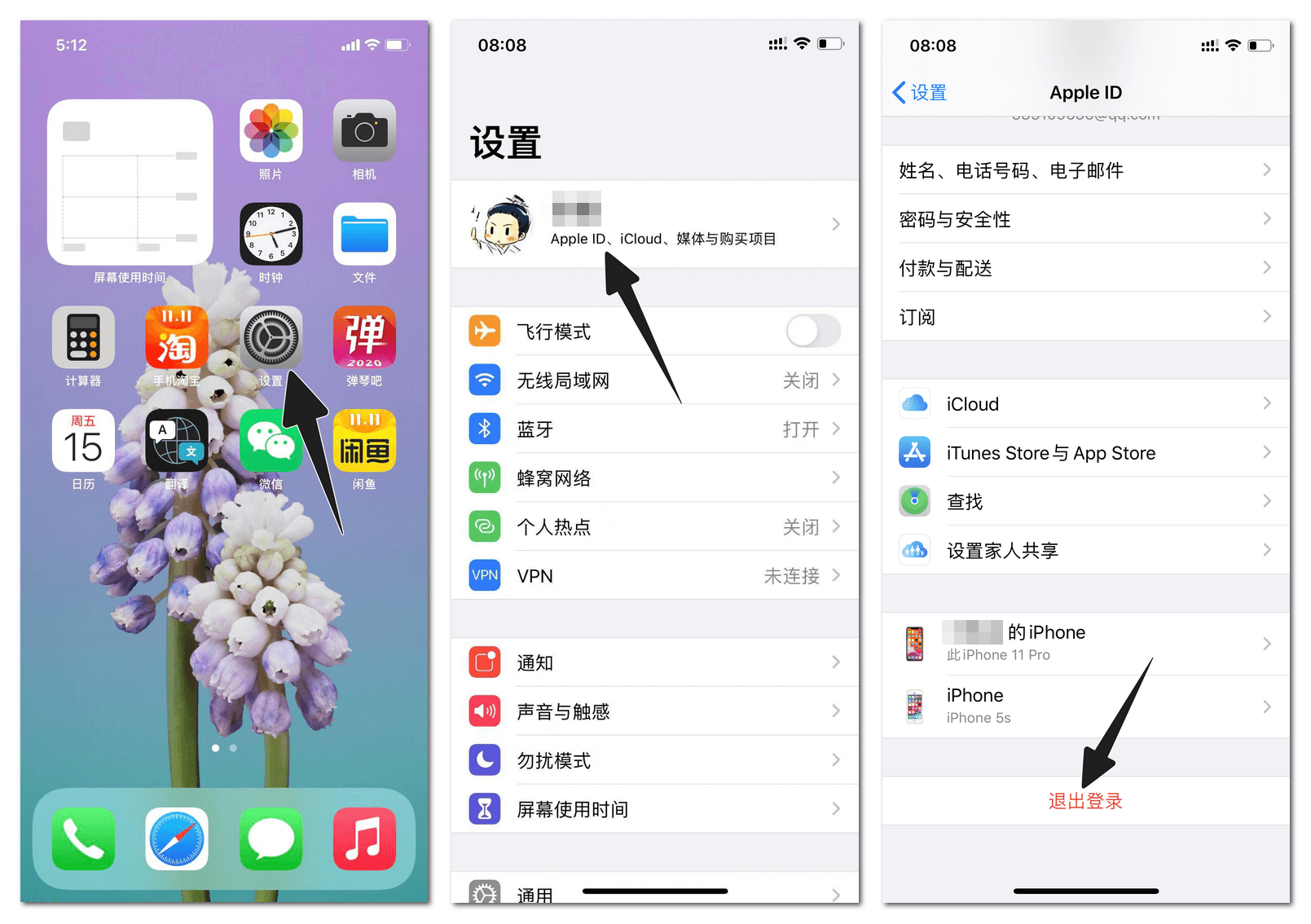
- Sign out of Apple ID in iOS Settings
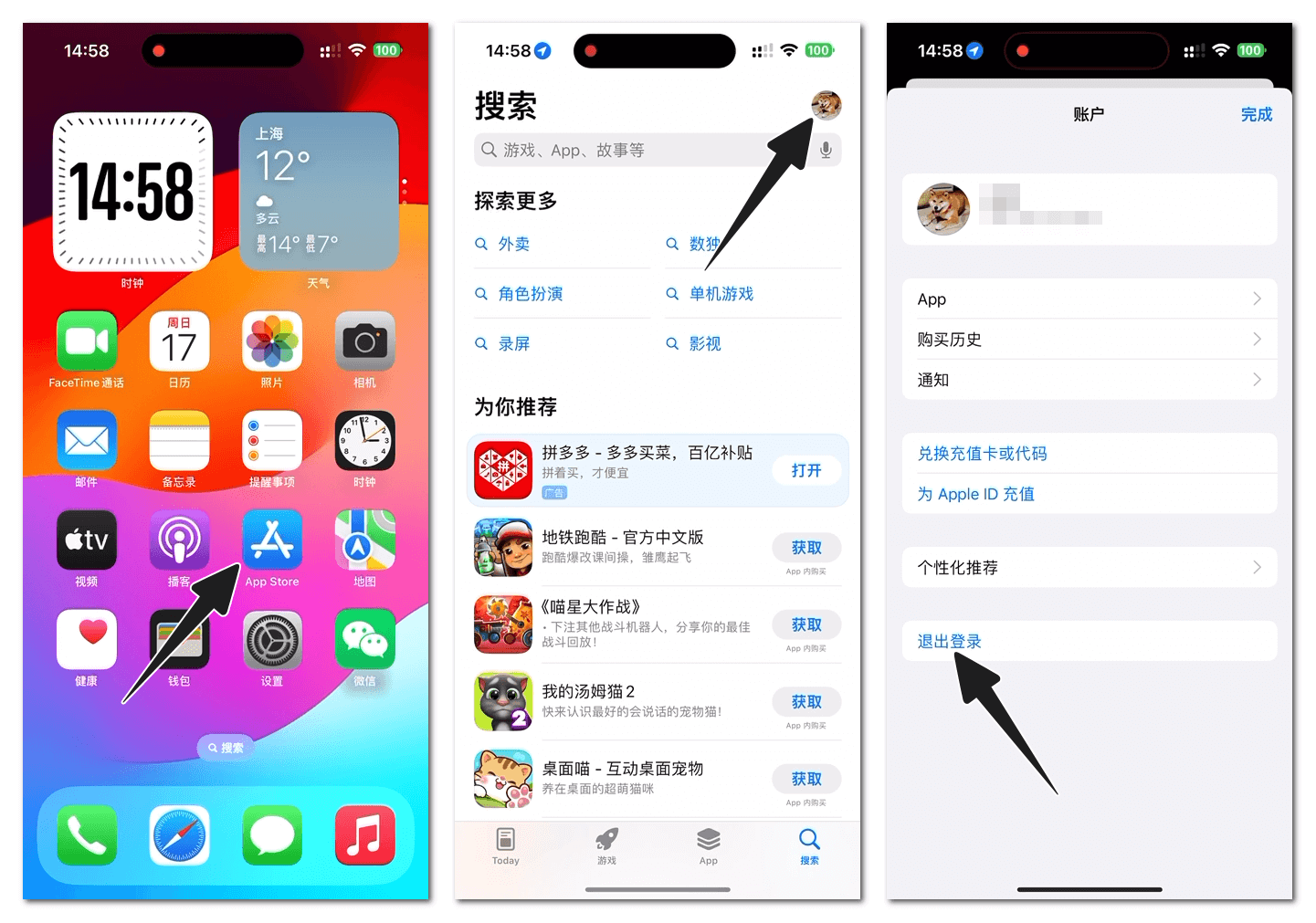
- Sign out of your account in the App Store
If the device is not with you, you can log in to the Apple ID management website through a browser and select to remove associated devices.
⚠️ It is recommended to use a local IP for access, not a proxy, to avoid triggering Apple's security controls.
⚙️ 3. Steps to Modify Apple Account Information
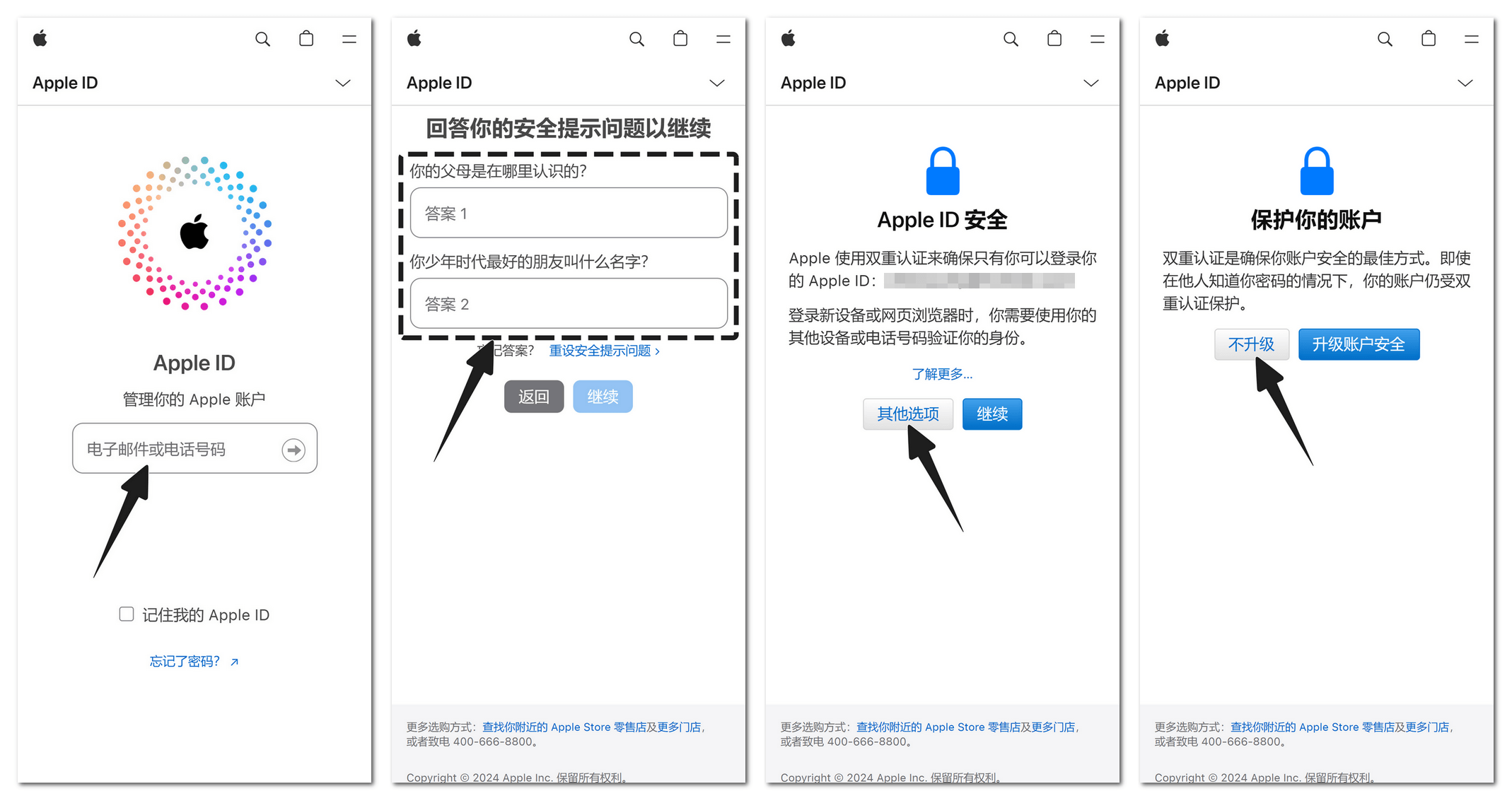
1. Log in to Apple Account Management Page
Visit https://appleid.apple.com/sign-in to log in to your account.
When logging in, do not enable two-factor authentication yet, otherwise you cannot modify security questions. If already enabled, you can disable it first before logging in to make modifications.
2. Change Account Password
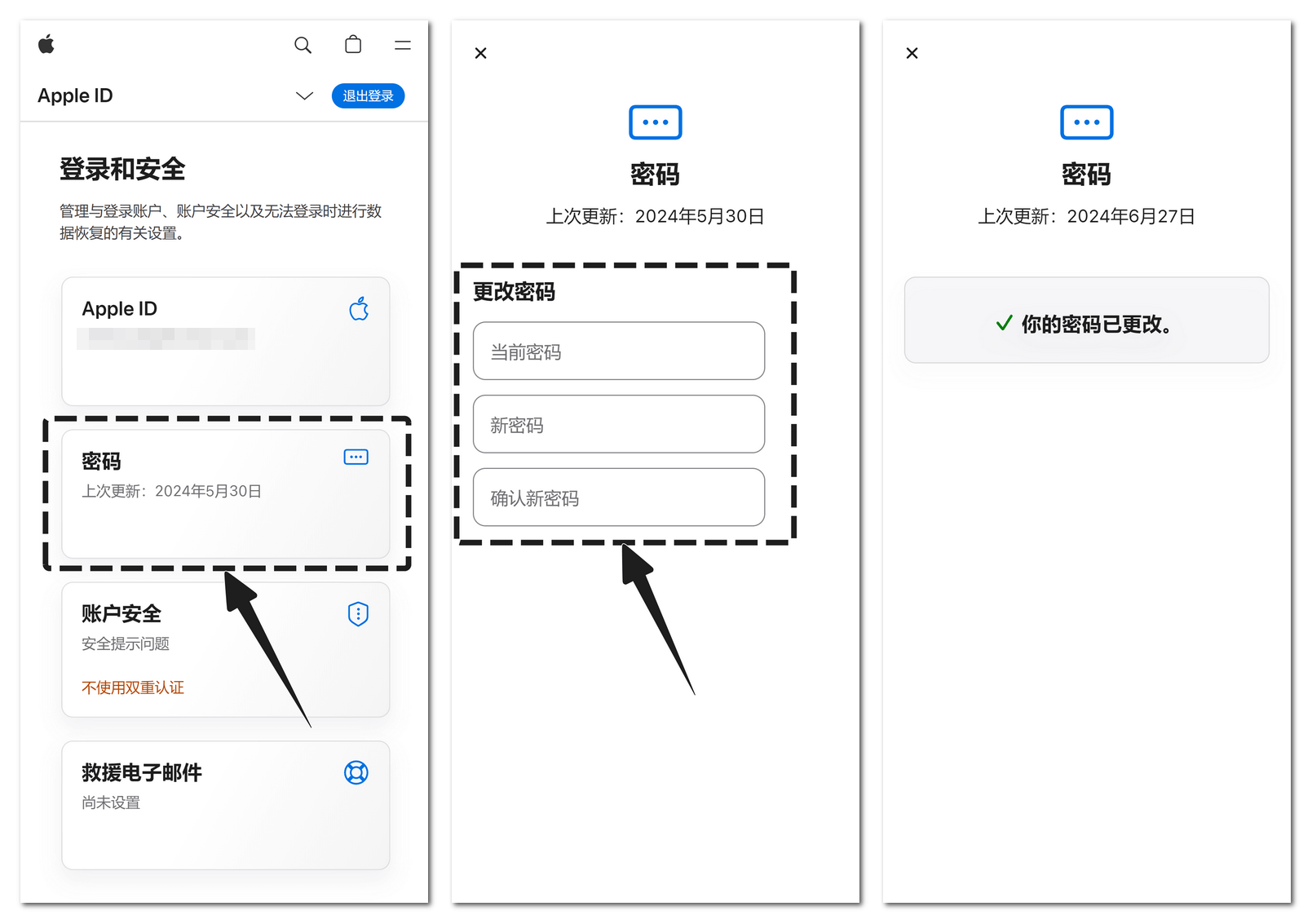
After logging in, click the "Password" option, enter your current password and new password, and complete the modification.
3. Change Security Questions
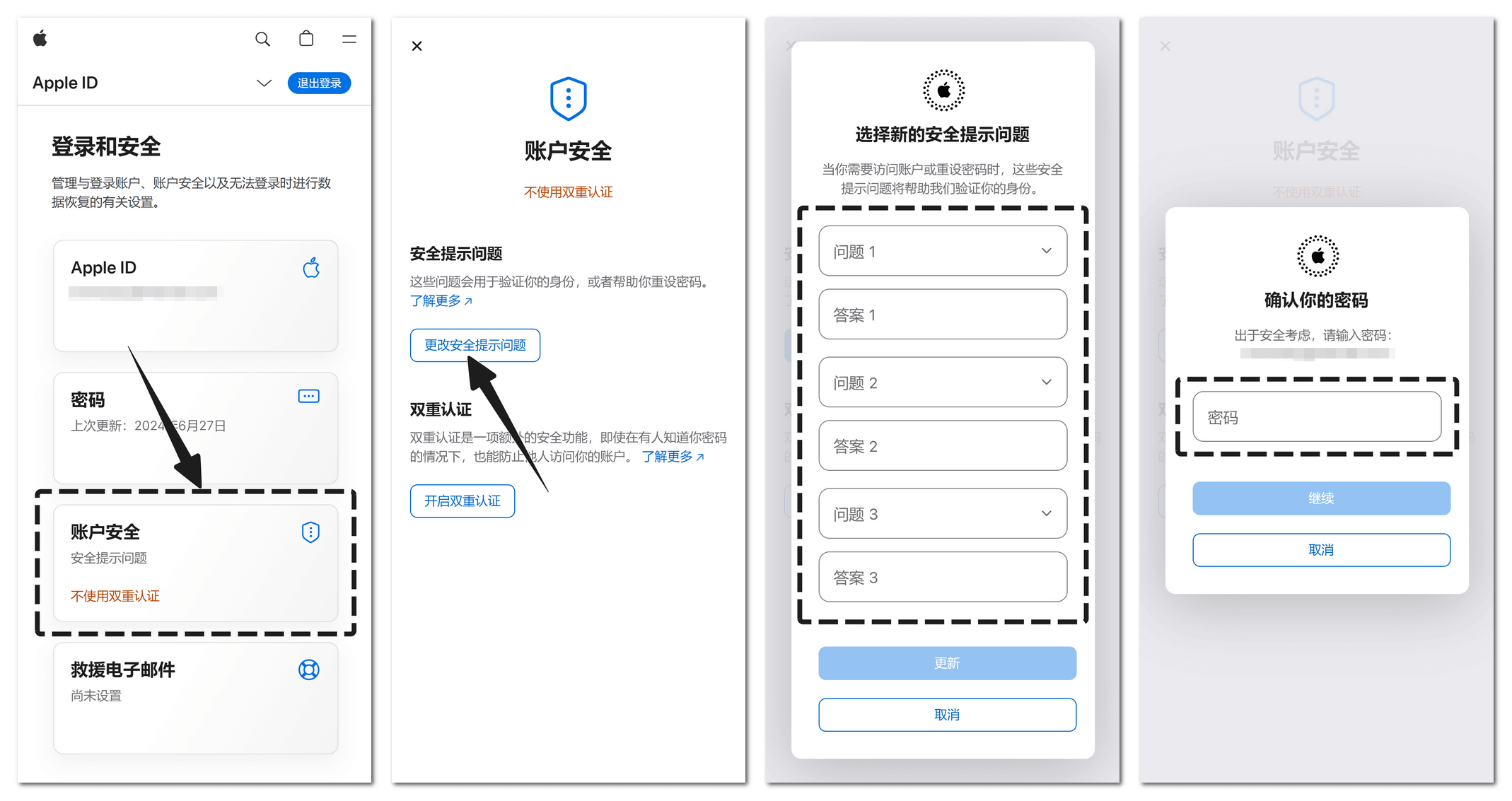
Go to "Account Security" → click "Change Security Questions", set new questions and answers, and verify your password to save.
4. Change Linked Email
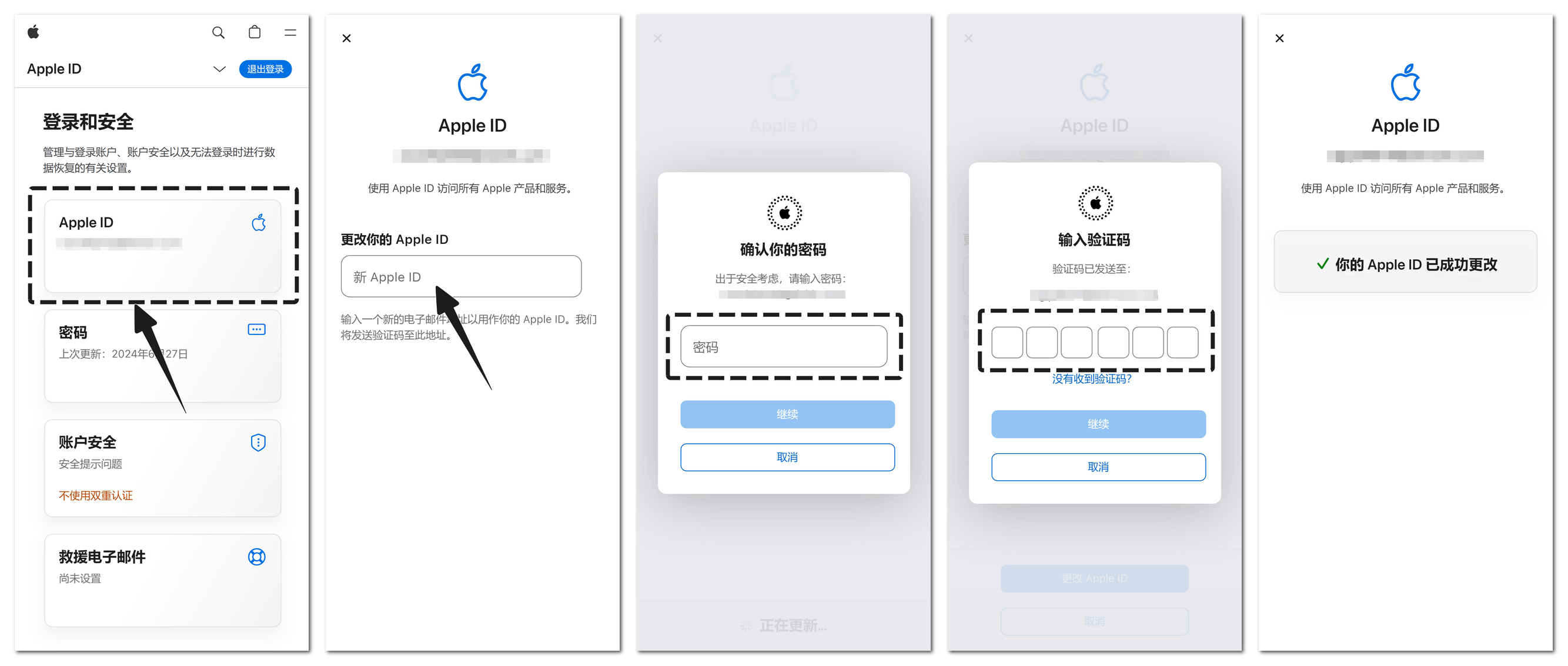
Go to the "Apple ID" option, enter a new email address, verify your password and email verification code to complete the binding. After changing the email, log in to your account with the new email.
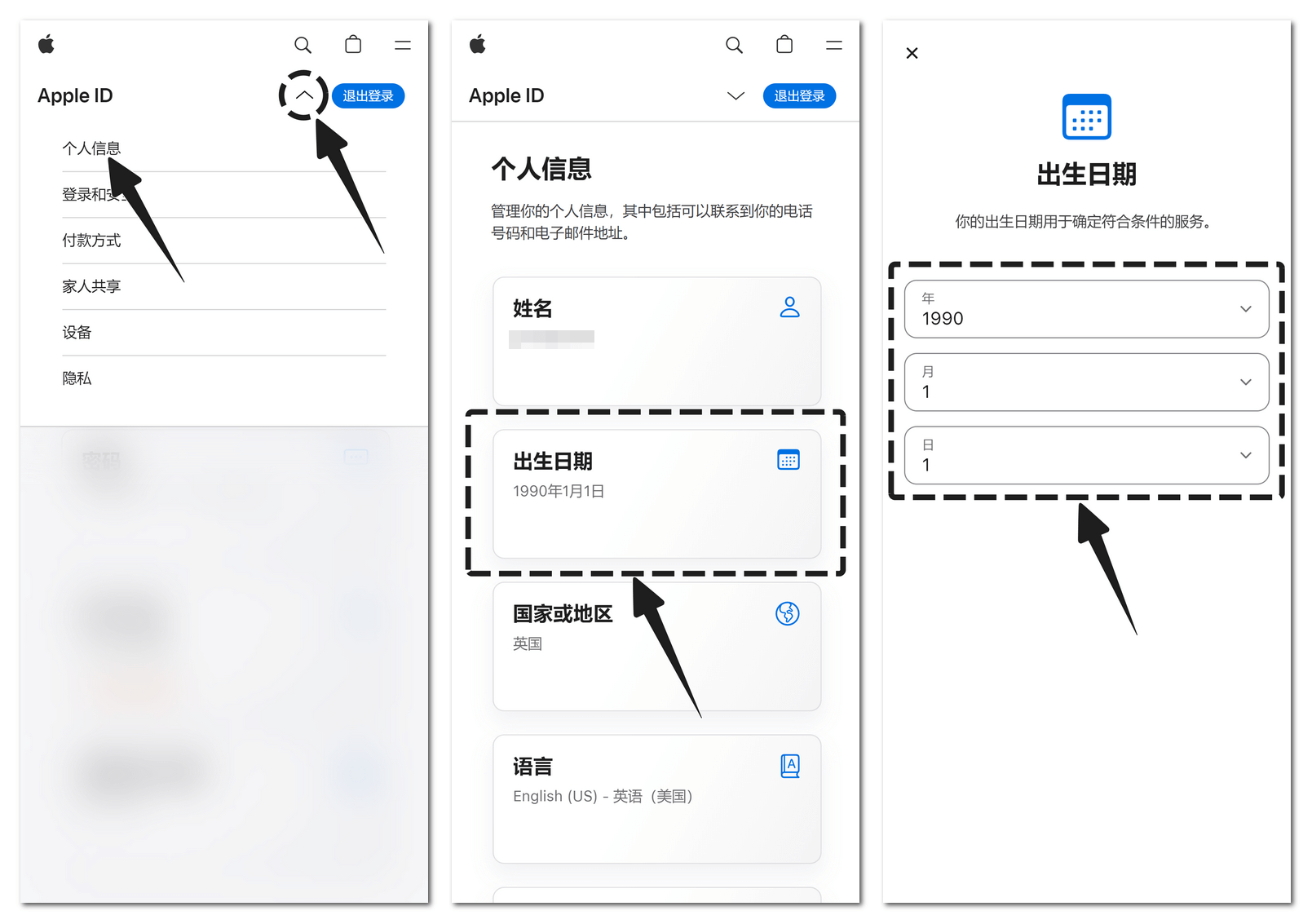
5. Change Date of Birth and Name
Click "Personal Information" → modify "Date of Birth" and "Name", setting memorable information for future verification.
✅ Tip: Modifying information will not affect apps or data already purchased in the account.