 WDCH
WDCH
Cookie & User Agent Usage Guide
Achieve multi-account anti-association and password-free secure login through a modern fingerprint browser
📘 Core Technical Concepts Explained
Cookie is an encrypted credential stored in your browser by websites (most commonly sold in JSON format). When logging in via Cookie, the platform directly recognizes it as a normal return from the original device, no need to enter account credentials or perform secondary verification. This not only greatly improves convenience but also significantly increases the risk control system's trust in the login environment.
User Agent (abbreviated as UA) is a string used to identify browser type, operating system, and version. Social media platforms (such as Facebook) strictly verify this information when compiling your device fingerprint.
💡 Tip: If the purchased card credentials include User Agent, be sure to import it as well. This effectively simulates the original account holder's device fingerprint and significantly reduces the probability of being disabled by environmental risk controls.
Main Advantages of Using 👍 Cookie to Log In to Facebook
- Password-Free Automatic Login: Cookie automatically records and inherits the online login state, bypassing credential entry directly and avoiding account locks due to multiple login attempts from unfamiliar locations.
- Inherited Personalization Settings: Facebook automatically reads the preference settings (such as language, theme, etc.) stored in Cookie, reducing the weight of sudden environmental changes.
- Perfect Session Continuity: Allows seamless navigation between pages in the fingerprint browser without repeated cumbersome security identity verification.
🚀 AdsPower Fingerprint Browser Import Cookie Tutorial
Since most professional users choose the more secure ** fingerprint browser ** for environmental isolation, here we use the industry mainstream AdsPower Browser as an example to demonstrate the specific configuration process:
Go to AdsPower Fingerprint Browser Official Website to download the client and complete account registration. For smaller workloads, use its Free version is all you need (you can create 2 independent browser environments for free).
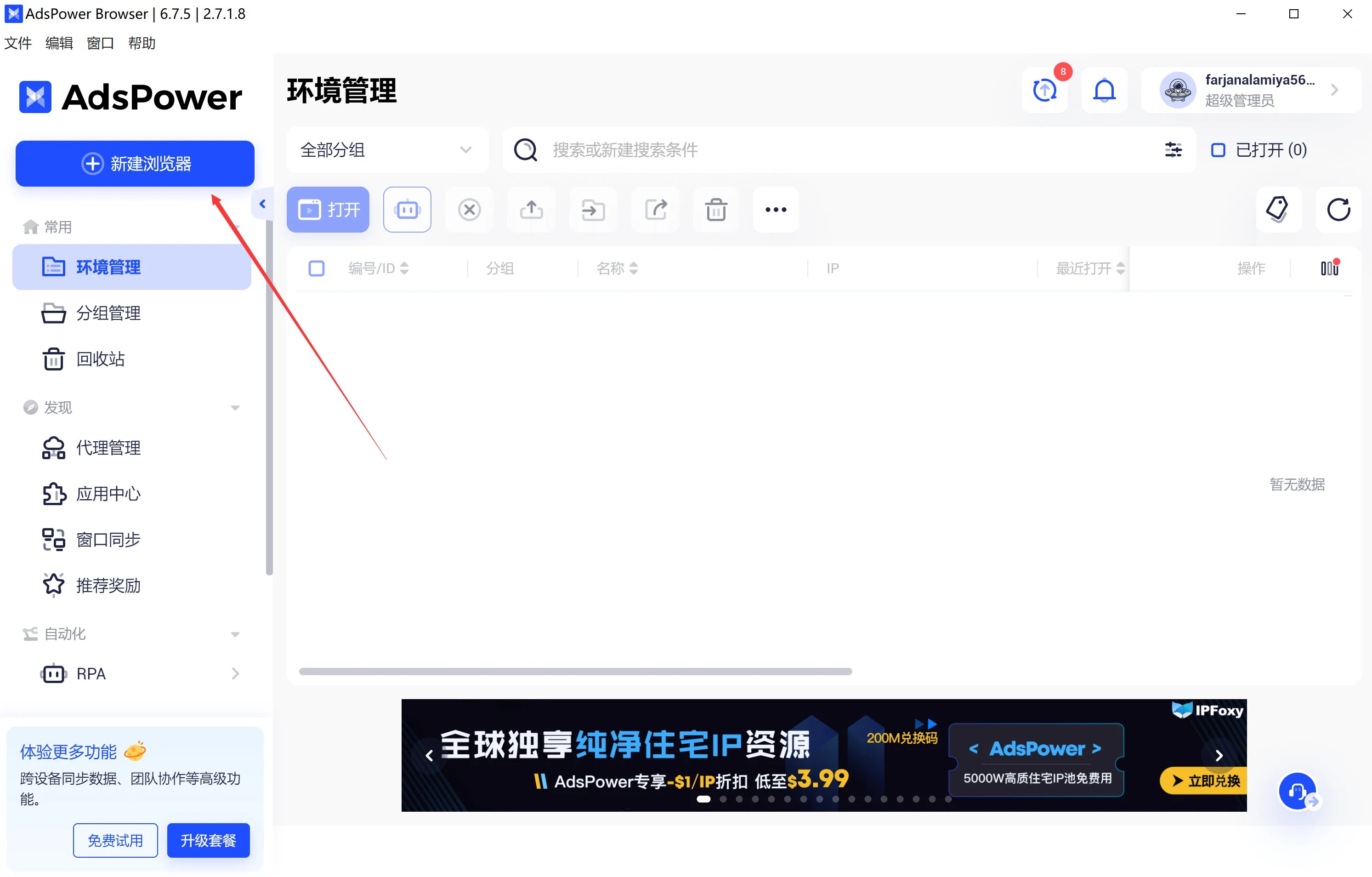
Log in to the AdsPower backend and click the [New Browser] button in the upper-left or upper-right corner to enter the configuration page.
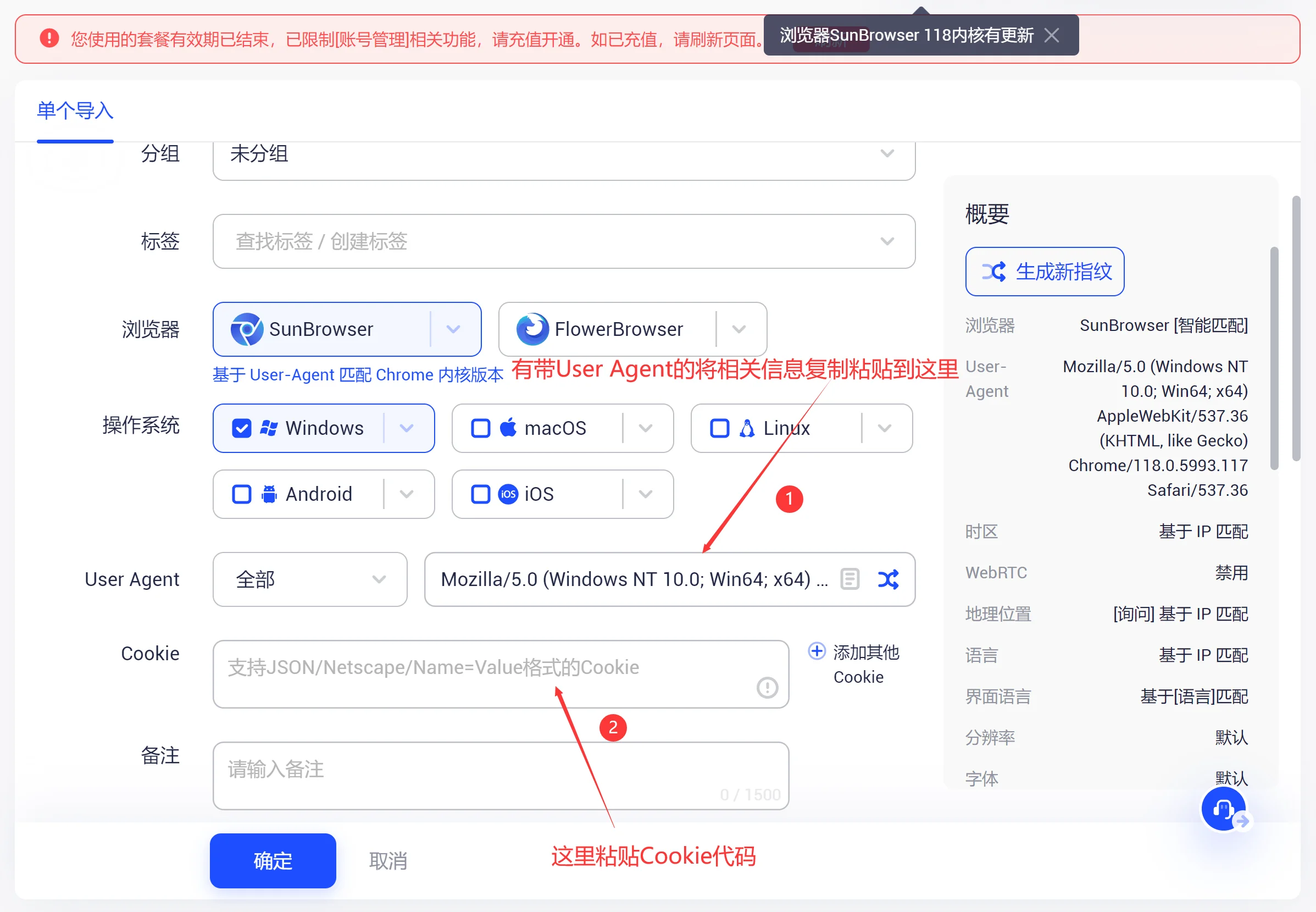
Scroll down the page to find the Cookie field and copy and paste the entire JSON-format Cookie code you obtained from your purchase. If the card credentials come with User Agent you need to first clear the default parameters in the input field Then paste the included UA string into it.
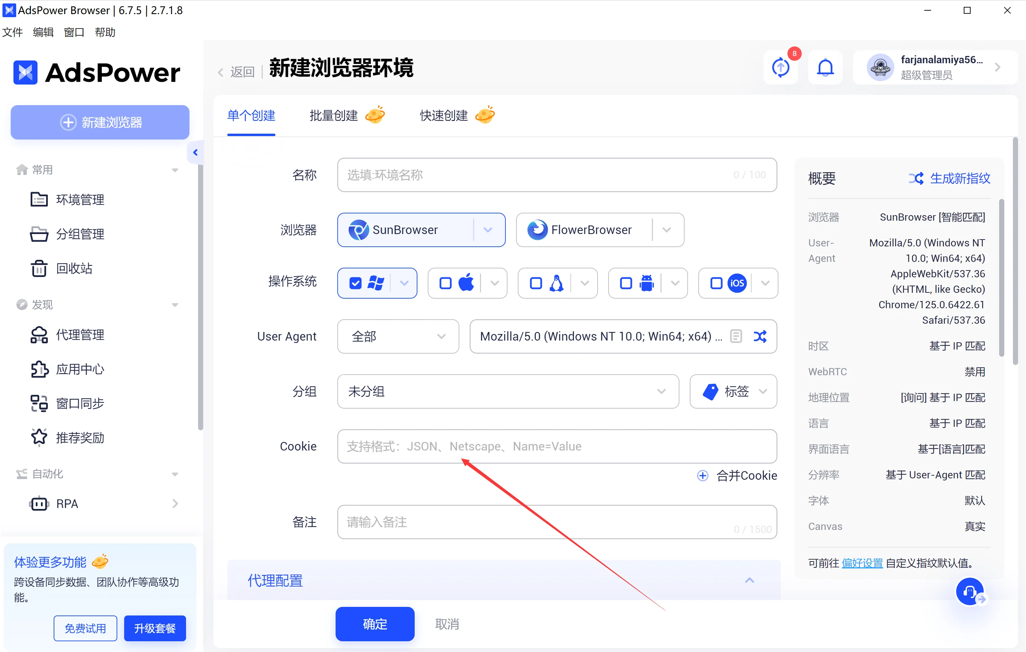
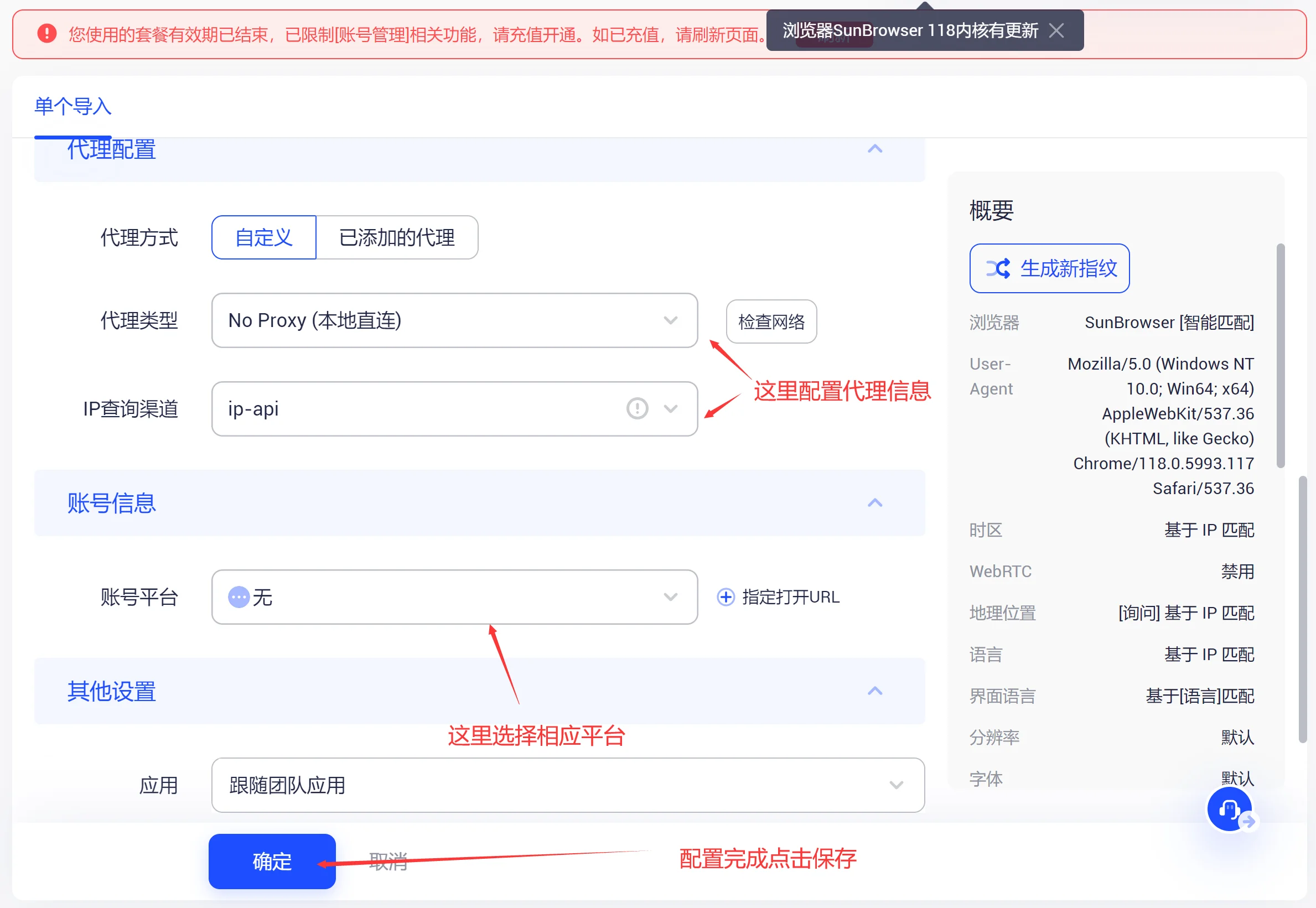
In the "Account Platform" options bar, select the corresponding site you want to import from (for example, if you are importing a Facebook account, the platform must be selected Facebook). Then follow the prompts to configure the proxy IP for the corresponding country/region that you have purchased and prepared in advance.
After confirming everything is correct, click ⟪OK/Save⟫. Once configuration is complete, return to the environment list and click ⟪Open⟫. After the browser launches, you will be taken directly to the corresponding platform's main interface with automatic login already completed.